






Introduction
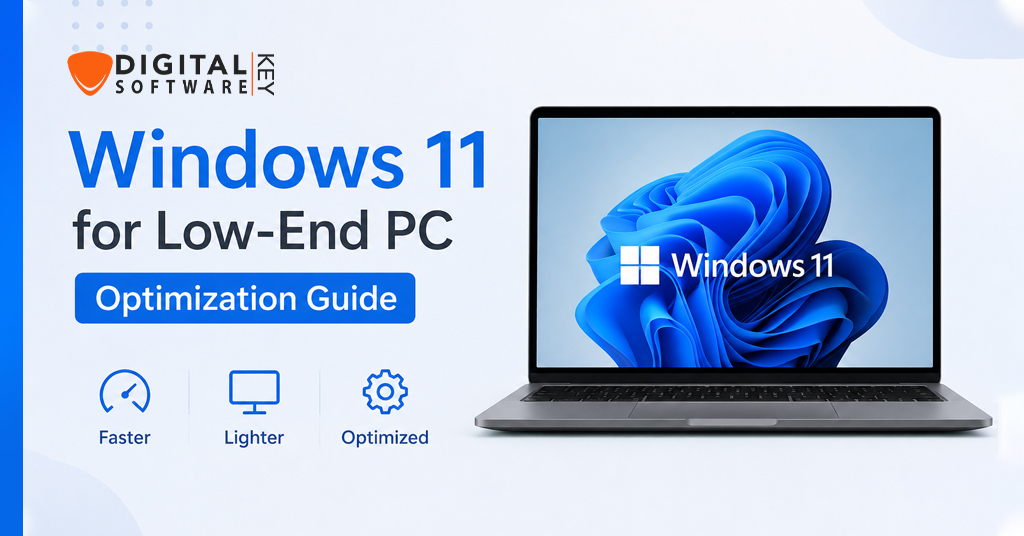
I remember the day I installed Windows 11 on my old laptop. That laptop had only 4GB of RAM. It also had a slow hard drive. The system felt like a crawling snail. Every click took ages. I felt frustrated. I almost gave up. But then, I decided to fight back. I started learning every trick. I found many ways to speed it up. Now, that same laptop runs Windows 11 smoothly. You can do it too. This guide shares my journey. It helps you fix your slow PC. You do not need new hardware. You only need these smart steps. Let us begin.
Why Windows 11 Feels Slow on Low-End PCs
Windows 11 looks beautiful. But beauty needs power. It has many new animations. It runs background apps. It checks for updates often. These tasks eat your CPU and RAM. Consequently, low-end PCs struggle. A PC with 2GB or 4GB RAM feels the pain. Similarly, an old hard drive makes it worse. Nonetheless, you can change this. You can turn off the heavy features. You can make Windows 11 light and fast. Therefore, follow this guide step by step.
Check If Your PC Meets the Bare Minimum
First, know your PC’s limits. Windows 11 needs at least 4GB RAM. It needs 64GB storage. It also needs a TPM 2.0 chip. However, many low-end PCs miss this. Do not worry. You can still install and run it. For instance, you can bypass TPM checks. There are simple scripts online. But be careful. Only use trusted sources. Alternatively, install the “Windows 11 LTSC” edition. It is lighter. It removes many bloatware apps. Consequently, your old PC breathes easier. Check your RAM first. Right-click the taskbar. Open Task Manager. Go to Performance tab. If you see 2GB RAM, expect some lag. Nonetheless, our optimizations will help a lot.
Use the Official Windows 11 Lite Version
Microsoft does not call it “Lite.” However, the “Windows 11 SE” edition exists. It is for schools. It runs on cheap laptops. Similarly, the Enterprise LTSC” is very light. These versions have fewer services. They do not run Microsoft Store heavily. They also skip many background tasks. As a result, they use less RAM. You can find these versions legally. Download them from Microsoft’s website. Then install Windows 11 fresh. This step alone makes a huge difference. Therefore, choose a light edition first. Then apply the other tips below. You will see faster boot times. You will notice snappier app launches.
Disable All Visual Effects and Animations
Animations kill low-end PCs. Windows 11 has many of them. For example, windows fade in. Menus slide. Icons bounce. These effects use GPU and CPU. Turn them off now. Here is how. Type “Advanced system settings” in the search bar. Click on “Settings” under Performance. Then select “Adjust for best performance.” Click Apply. Then click OK. Immediately, your PC feels snappier. Additionally, you can disable transparency effects. Go to Settings > Personalization > Colors. Turn off “Transparency effects.” You lose some beauty. But you gain speed. Trust me, speed matters more. Use this trick on every Windows 11 low-end machine.
Turn Off Startup Programs
Many apps sneak into your startup. They run when Windows 11 boots. For instance, Skype, Spotify, and Discord start automatically. They eat RAM from second one. Consequently, your PC stays slow. Fix this now. Open Task Manager. Press Ctrl + Shift + Esc. Click on the Startup tab. You see a list of programs. Right-click each unnecessary program. Select Disable. Only keep your antivirus or driver tools. After a restart, Windows boots much faster. In fact, you save 20-30 seconds. Moreover, you free up 300-500MB of RAM. This is a big win.
Adjust for Best Performance in Settings
Windows 11 has hidden performance sliders. Go to Settings > System > Power & Battery. Click on Power mode. Choose “Best performance.” This gives full power to your CPU. Do not choose “Power saver.” That slows down everything. Next, go to Settings > System > About. Click on “Advanced system settings.” Under Advanced tab, click Settings for performance. Already we did this. But double-check. Also, go to Settings > Apps > Startup. Turn off all toggles. Finally, turn off “Virtualization based security” if you have it. This feature uses lots of RAM. You can disable it via Windows Security. Consequently, Windows 11 becomes lighter.
Free Up RAM with Built-in Tools
Low RAM is the main villain. Windows 11 alone uses 2GB RAM. If you have only 4GB, half is gone. Therefore, use Storage Sense. Go to Settings > System > Storage. Turn on “Storage Sense.” Click “Run Storage Sense now.” It deletes temporary files. It also empties the recycle bin. Additionally, use the Memory Cleaner tool. Type “Memory Cleaner” in Microsoft Store. Install the free one. Then run it every hour. It flushes unused RAM. Similarly, disable SysMain service. Press Win + R. Type services.msc. Find SysMain. Stop it and disable it. This service preloads apps. On low-end PCs, it causes lag. You just saved 200-400MB RAM.
Stop Background Apps
Many apps run secretly. They update in the background. They send notifications. They sync data. All of this slows Windows 11. Go to Settings > Privacy & security > Background apps. Turn off “Let apps run in the background.” Then scroll down. Disable each app individually. Especially disable Xbox, News, and Weather apps. You do not need them. Furthermore, use the “msconfig” tool. Press Win + R. Type msconfig. Go to Services tab. Check “Hide all Microsoft services.” Then disable third-party services you do not recognize. Be careful. Only touch what you know. This step keeps your Windows 11 lean.
Disable Search Indexing
Search indexing is a resource hog. Windows 11 indexes all your files. It does this to make search faster. But on a low-end PC, this causes constant disk activity. Your hard drive spins endlessly. Consequently, your PC freezes. Disable it. Type “Indexing Options” in search. Click on “Modify.” Uncheck all locations. Then click OK. Alternatively, turn off the Search service. Press Win + R. Type services.msc. Find “Windows Search.” Stop it. Set Startup type to Disabled. You lose instant search. But your disk stays quiet. You can still search files manually. Use Everything Search tool. It is lighter. Now Windows 11 feels more responsive.
Modify Game Mode for Better FPS
Do you play old games on Windows 11? Game Mode helps. But its default settings are not perfect. Go to Settings > Gaming > Game Mode. Turn it On. Then click on Graphics. Add your game .exe file. Set it to “High performance.” This forces Windows 11 to give more GPU power. Next, disable “Game Bar.” Turn off “Record game clips.” Turn off “Capture audio.” These features waste resources. Additionally, disable “Xbox Game Monitoring.” Go to Services. Disable Xbox Live services. You can gain 5-10 FPS. Your gaming becomes smoother.
Use a Lightweight Browser and Apps
Windows 11 runs Chrome slowly. Chrome eats RAM like candy. Instead, use Firefox or Edge. But set them to low RAM mode. In Edge, turn on “Efficiency mode.” In Firefox, limit content processes. Go to about:memory and minimize memory usage. Moreover, replace heavy apps. Use Notepad++ instead of Visual Studio Code. Use MusicBee instead of Spotify. Use VLC instead of Windows Media Player. These light apps reduce overall load. Consequently, runs faster. Uninstall all Microsoft bloatware. Use this PowerShell command: Get-AppxPackage *xbox* | Remove-AppxPackage. Repeat for News, Bing, and Maps. Keep only what you use.
Regular Maintenance Schedule
Speed does not last by itself. You need a routine. Therefore, set a weekly schedule. Every Monday, run Disk Cleanup. Type “Disk Cleanup” in search. Select your C drive. Delete temporary files. Then run sfc /scannow in Command Prompt. This fixes system files. Also, run DISM /Online /Cleanup-Image /RestoreHealth. This repairs Windows 11 image. Once a month, defrag your hard drive. But only if you have HDD. Do not defrag an SSD. Use “Optimize Drives” tool instead. Finally, restart your PC twice a week. This clears memory leaks. Following this schedule keeps your Windows fast forever.
Advertise Microprokey – Activate Windows 11 Cheaply
You have optimized Windows 11 perfectly. But is it activated? An unactivated version shows a watermark. It also limits personalization. You cannot change themes. You cannot use dark mode fully. However, you do not need to pay $100. Microprokey offers genuine **Windows 11** keys for under $15. Visit microprokey.com. Choose Windows 11 Pro or Home. Pay with PayPal or credit card. They email the key instantly. Then go to Settings > Activation. Click “Change product key.” Enter your key. Your Windows becomes full version. Consequently, you unlock all performance settings. You can disable more features. Microprokey is safe and cheap. Thousands of users recommend it. Use it today. Activate your legally and fast.
Conclusion
We have covered a lot. You now know 12 powerful ways to speed up Windows 11 on low-end PCs. First, you check your hardware. Then you disable animations. You turn off startup apps. You free up RAM. You stop background tasks. You also disable search indexing. Each step removes a little lag. Collectively, they transform your PC. I used these exact steps on my old laptop. That laptop now boots Window in under 30 seconds. Apps open instantly. I can even watch YouTube at 720p. You can achieve the same result. Do not accept a slow computer. Fight back with these tools. Furthermore, keep a weekly maintenance habit. Run Disk Cleanup. Restart your system. Update your drivers. If you need a cheap activation key, visit Microprokey. It unlocks all performance features of Windows 11. Remember, is not just for new machines. With smart tweaks, it runs on old hardware too. Start today. Apply the first three tips immediately. Then do the rest one by one. Soon, you will love using again. Your old PC will thank you. Stay fast and productive.
FAQ’s
1. Can Windows 11 run on 2GB RAM?
Yes, but very slowly. You must disable all animations and background apps. Use the LTSC version. After optimization, you can browse web and write documents. However, do not open many tabs. Upgrade to 4GB for better experience.
2. How do I bypass TPM 2.0 for Windows 11?
You can use a USB installer with a modified file. Download the official ISO. Use Rufus tool. Select “Remove TPM check.” Then install normally. This works for most low-end PCs. After installation, apply our optimization guide.
3. Does disabling animations make Windows 11 ugly?
A little, but much faster. You lose fade and slide effects. But you gain instant response. Most users prefer speed over looks. You can always re-enable them later. Try it for one week. You will not go back.
4. Is Microprokey safe to buy a Windows 11 key?
Yes, many users confirm it. Microprokey sells genuine OEM keys. They work permanently. You get the key by email. The activation process is simple. Use PayPal for buyer protection. It is a cheap alternative to full retail.
5. Will these optimizations work on Windows 10 too?
Absolutely. Most steps are similar. Disable animations and startup apps. Free up RAM. Use lightweight browsers. The methods are universal. But this guide focuses specifically on Windows 11. For Windows 10, you can apply 90% of these tips.