






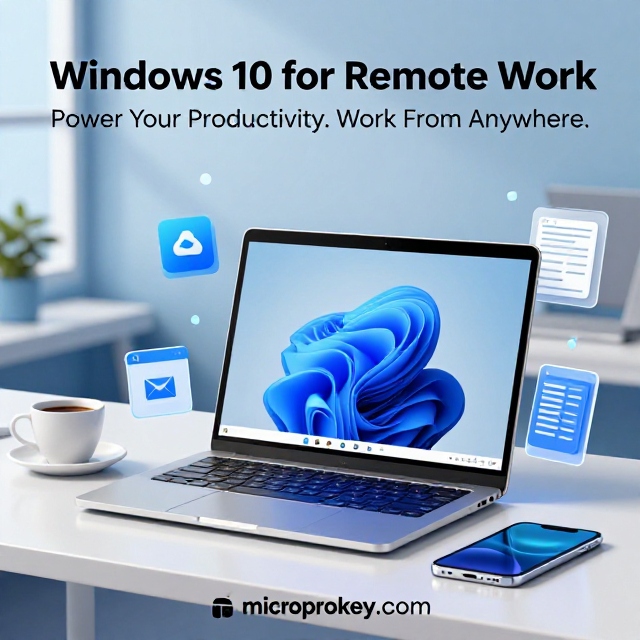
I still remember the day my neighbor knocked on my door. He looked tired. His company told him to work from home starting Monday. He had a Windows 10 laptop and a shaky internet connection. He did not know where to start. He asked me one simple question. “Can you help me set this up?” That night, we sat at his kitchen table. We turned his messy laptop into a solid remote work machine. This guide is everything we did that night. It is written for you. You will learn how to set up Windows 10 for remote work the right way. You will save time. You will avoid common mistakes. You will feel confident working from home.
Why Windows 10 Still Makes Sense for Remote Work
Many people think Windows 10 is old news. They are wrong. Windows 10 remains a strong choice for remote work. It is stable. It is familiar. Millions of workers use it every day. Moreover, Windows 10 for remote work offers all the core tools you need. You get Remote Desktop. You get BitLocker encryption. You get Windows Update. You get a mature app ecosystem. Therefore, you do not need to rush into an upgrade. Instead, you can optimize what you already have. In fact, a well-configured Windows 10 machine can outperform a poorly set up newer system. So, let us start with the foundation. We will make your Windows 10 setup solid and secure.
First Steps: Check Your Windows 10 Edition
Not all Windows 10 versions are equal. This fact matters for remote work. Windows 10 Home cannot host a Remote Desktop connection. Only Windows 10 Pro, Enterprise, or Education can act as the host . Therefore, check your edition first. Click Start. Then click Settings. Then click System. Then click About.
Look at the “Edition” line. If you see “Windows 10 Home,” you have two choices. You can upgrade to Pro. Or you can use third-party remote tools. For full native support, Pro is the better path. You can find genuine Windows 10 Pro licenses from trusted sellers like Microprokey. They offer reliable keys and activation support. Once your edition is ready, you can unlock the full power of Windows 10 for remote work.
How to Enable Remote Desktop on Windows 10
Now let us turn on the main feature. Remote Desktop lets you access your office PC from home. First, click the Start button. Then type “Remote Desktop settings.” Open the result. Toggle “Enable Remote Desktop” to On. Click Confirm when the prompt appears . Next, note your PC name. You will need it later. Go back to Settings. Click System. Click About. Write down the “Device name.” That is your address. Now your Windows 10 for remote work host is active. But do not stop here. An open door needs a good lock. We will secure it in the next section. Keep reading because security makes or breaks remote work.
Secure Your Remote Desktop Connection Immediately
Security is not optional. Remote Desktop Protocol (RDP) is a common target for attackers. Therefore, you must harden it right away. First, enable Network Level Authentication (NLA). Go to System Properties. Click the Remote tab. Click Advanced. Check “Require computers to use NLA” . This step forces authentication before a session starts. Second, change the default RDP port. The default is 3389.
Attackers scan for it constantly. Open the Registry Editor. Navigate to the RDP port settings. Change it to a high number. Third, never expose RDP directly to the internet. Use a VPN instead. A VPN creates a private tunnel. Your Windows 10 for remote work setup becomes far safer. These three steps take ten minutes. They prevent hours of pain.
Use Strong Passwords and Account Controls
Weak passwords ruin good setups. This rule applies to all remote work. Your Windows 10 for remote work account must have a strong password. Use at least twelve characters. Mix upper case, lower case, numbers, and symbols. Avoid names and common words. Moreover, disable the built-in Administrator account. Attackers know it exists. They will try to break it. Create a separate admin account for yourself.
Use a standard account for daily work. This limits damage if something goes wrong. Also, enable account lockout policies. After five failed attempts, lock the account for fifteen minutes. These settings live in Local Security Policy. Open it. Go to Account Policies. Set the rules. Finally, consider Windows Hello. Use a PIN or fingerprint. It adds convenience without sacrificing safety. Strong accounts are the backbone of Windows 10 for remote work.
Set Up a VPN Before You Leave the Office
A VPN is your best friend for remote work. It encrypts your traffic. It hides your IP address. It makes your connection private. Before you leave the office, set up a VPN on your Windows 10 machine. Your company may provide one. If not, use a trusted commercial VPN. Install the client. Connect once while you are still on the office network. Verify it works. Then disconnect. When you get home, connect again. Now you can use Remote Desktop safely. Your Windows 10 for remote work traffic travels through an encrypted tunnel. Without a VPN, RDP over the internet is risky. Therefore, treat the VPN as a required step. It is not extra credit. It is basic hygiene.
Optimize Windows 10 for Better Remote Performance
Remote work can feel slow. Lag kills productivity. Fortunately, Windows 10 has built-in performance settings. Use them. First, adjust visual effects. Right-click This PC. Click Properties. Click Advanced system settings. Under Performance, click Settings. Choose “Adjust for best performance” .
This turns off fancy animations. It frees up resources. Second, manage your startup apps. Press Ctrl+Shift+Esc. Open Task Manager. Go to the Startup tab. Disable apps you do not need at boot. Third, check your power settings. Set your PC to never sleep when plugged in. You do not want your host to shut down while you are away. These tweaks take five minutes. They make Windows 10 for remote work feel snappy. Small changes add up to big gains.Configure Windows Update for Remote Work
Updates are important. They patch security holes. But random restarts are annoying. You need a balance. Windows 10 for remote work requires a smart update strategy. First, set active hours. Go to Settings.
Click Update & Security. Click Windows Update. Click Change active hours. Set the hours when you typically work. Windows will avoid restarting during those times. Second, pause updates before a big meeting. You can pause for up to 35 days. Use this feature wisely. Third, check for updates manually once a week. Do it on a Friday afternoon. Install updates. Restart. Then you are ready for Monday. Finally, enable “Restart apps after sign-in.” This setting reopens your apps after a reboot. It saves time. Good update habits keep Windows 10 for remote work stable and secure.
Master File Access and OneDrive Sync
You need your files. Remote work fails without them. Windows 10 gives you OneDrive built in. Use it. First, sign in to OneDrive with your work account. Choose which folders to sync. Do not sync everything. Sync only what you need. This saves disk space and bandwidth. Second, use “Files On-Demand.”
This feature shows all your files without downloading them all. You download a file only when you open it. It is a lifesaver for small SSDs. Third, set up a backup. Use File History or a third-party tool. Back up to an external drive. Do it weekly. Finally, test file access from outside your network. Make sure you can reach what you need. Reliable file access makes Windows 10 for remote work smooth. Without it, you will waste time hunting for documents.
Set Up Your Home Network for Stability
Your internet connection is the weakest link. Fix it before you start. First, use a wired connection if possible. Ethernet is faster and more stable than Wi-Fi. If you must use Wi-Fi, move closer to the router. Second, restart your router regularly. Do it once a week. Unplug it. Wait thirty seconds.
Plug it back in. Third, check your upload speed. Remote Desktop needs decent upload. Most home connections have fast download but slow upload. Test your speed. If upload is below 5 Mbps, consider an upgrade. Fourth, avoid peak congestion hours. Streaming and gaming compete for bandwidth. Schedule big file transfers for off-peak times. A stable network makes Windows 10 for remote work reliable. A shaky network makes everything frustrating.
Use These Built-In Windows 10 Productivity Tools
Windows 10 for remote work includes hidden gems. Learn them. First, use Virtual Desktops. Press Win+Ctrl+D to create a new desktop. Keep work on one desktop. Keep personal stuff on another. Press Win+Ctrl+Left or Right to switch. Second, use Focus Assist. Go to Settings. Click System. Click Focus assist.
Turn on “Priority only” during work hours. It silences notifications. Third, snap windows. Drag a window to the left or right edge. It fills half the screen. Drag another window to the other side. Now you have two apps side by side. Fourth, use Clipboard History. Press Win+V. You see your recent copies. Pin items you use often. These tools cost nothing. They boost focus. They make Windows 10 for remote work more productive.
Troubleshoot Common Remote Desktop Problems
Problems happen. Be ready. If you cannot connect, check your firewall first. Windows Defender Firewall may block RDP. Open it. Click “Allow an app through firewall.” Find Remote Desktop. Make sure both Private and Public are checked . If the screen is black after login, disable bitmap caching. Open Remote Desktop Connection.
Click Show Options. Go to the Experience tab. Uncheck “Persistent bitmap caching.” If the connection is slow, lower the display resolution. Go to the Display tab. Choose a smaller resolution. If you get “Access Denied,” check your user permissions. The account must be in the Remote Desktop Users group. Add it manually if needed. Most issues have simple fixes. Stay calm. Check one thing at a time. Troubleshooting skills make Windows 10 for remote work stress-free.
Create a Backup and Recovery Plan
Remote work adds risk. Your office PC is alone. Protect it. First, enable System Restore. Go to Control Panel. Click System. Click System protection. Turn it on for your C: drive. Create a restore point before big changes. Second, back up your data regularly. Use an external drive. Use cloud storage. Use both if possible.
Third, create a Windows recovery drive. Plug in a USB drive. Search for “Create a recovery drive.” Follow the steps. This drive helps you fix boot problems. Fourth, write down your BitLocker recovery key. Store it somewhere safe. Not on the same PC. If BitLocker locks you out, that key is your only way back. A good backup plan saves you from disaster. It is essential for Windows 10 for remote work.
Consider Microprokey for Genuine Windows 10 Licenses
You may need a license upgrade. Windows 10 Home cannot host RDP. Therefore, you need Windows 10 Pro. Where should you buy it? Look for trusted sellers. Microprokey is a solid option. They specialize in Microsoft licenses. They offer Windows 10 Pro keys. They provide activation support. Many users report fast help with activation issues . Moreover, a genuine license matters for security.
It receives updates. It works without glitches. Do not risk a cheap, stolen key. It may stop working. It may expose you to malware. Buy from a reputable source. Microprokey gives you a clean path to a real license. Once activated, your Windows 10 for remote work setup is complete and legal. That peace of mind is worth the small cost.
FAQ’s
Q1: Can I use Remote Desktop on Windows 10 Home?
No. Windows 10 Home cannot act as a Remote Desktop host. You need Windows 10 Pro, Enterprise, or Education to receive connections. You can still connect from a Home edition PC to a Pro machine, but not the other way around .
Q2: Is Remote Desktop safe for remote work?
It can be safe if you configure it properly. Enable Network Level Authentication. Use strong passwords. Change the default port. Most importantly, use a VPN. Never expose RDP directly to the public internet without extra protection .
Q3: Why is my Remote Desktop connection so slow?
Several factors cause slowness. Your upload speed may be too low. Your Wi-Fi signal may be weak. Visual effects may be consuming resources. Try lowering the display resolution in Remote Desktop settings. Disable visual effects in Windows. Use a wired Ethernet connection if possible .
Q4: Do I need a VPN to use Windows 10 for Remote Work?
You do not strictly need one, but you should use one. A VPN encrypts your traffic. It hides your IP. It prevents attackers from seeing your RDP port. Without a VPN, your connection is exposed to the internet. That exposure invites trouble .
Q5: How do I fix “Access Denied” when connecting via RDP?
Your user account may not have permission. Check the Remote Desktop Users group. Go to Computer Management. Click Local Users and Groups. Click Groups. Open Remote Desktop Users. Add your account. Also, ensure your account has a password. Windows blocks RDP for accounts without passwords.
Final Thoughts
Windows 10 for remote work is not complicated. But it does require care. You must check your edition. You must enable Remote Desktop. You must secure it with NLA and a VPN. You must optimize performance. You must set up backups. These steps take time. But they pay off every single day. I watched my neighbor transform his setup that night. By the end, he felt ready. He was not scared anymore.
He knew his files were safe. He knew his connection was secure. You can feel the same way. Start with one step. Then do the next. Before you know it, your Windows 10 for remote work setup will be solid. Remember to use genuine licenses from trusted sources like Microprokey. Do not cut corners on security. Your work depends on it. Your peace of mind depends on it. Now go set it up. You have everything you need.