






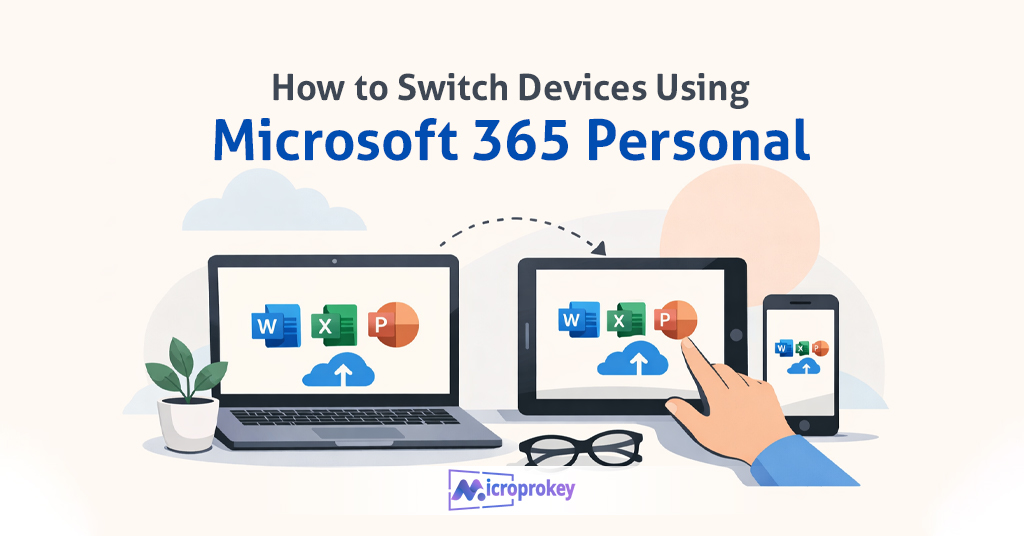
Sarah loved using Microsoft 365 Personal. She used it for everything—work, school, and personal tasks. Her old laptop had slowed down. It took long to boot up. Editing Word documents became hard. PowerPoint froze often. She knew she needed change. She saved up and bought a new laptop. It was shiny, fast, and perfect. But then she asked herself, “How do I transfer my Microsoft 365 Personal plan to this new device?”
Many are like Sarah. One day, your device gets slow or crashes. Maybe you buy a new tablet or laptop. The big question becomes how to keep using Microsoft 365 Personal. People may not know it’s easy. You don’t have to pay again. When you have Windows 11 and Microsoft 365 Personal, changing devices becomes smooth. Just sign out on the old device. Then sign in on the new one.
This guide tells you exactly how to make that switch. You’ll learn each step. You’ll avoid mistakes. We’ll even talk about saving files, transferring software, and using cloud access. Stick with us for a full walkthrough. Whether you’re on PC, Mac, or tablet, this guide is written for you. Using Microsoft 365 Personal should be simple. So, let’s get started and help you switch without stress.
What Is Microsoft 365 Personal?
Using Microsoft 365 Personal gives you a full toolkit. It’s perfect for one person.But you use it on one device at a time. That is great for students and professionals. You also get 1TB of cloud storage. That helps store all your files. You can access them anytime.
With a Microsoft account, you stay connected. Whether on Windows 11, macOS, or mobile, using Microsoft 365 Personal keeps life organized. You’ll also get updates. No extra fee is needed. Not just software—Microsoft Defender is included for protection. Switching devices won’t cancel your data or work. Your subscription goes wherever you go.
There’s freedom. Lost your tablet? Bought a new laptop? You can deactivate the old one and install Microsoft 365 Personal again. Get back to work instantly. So, in short, it’s your toolbox, your email center, and your cloud key. All under one subscription. Users love the flexibility. That’s why so many choose Microsoft 365 Personal when managing their digital life each day.
Preparing Your Old Device for the Switch
Before you switch devices, prepare the old one. Step one is signing out from Microsoft 365 Personal. This avoids license problems. Open Word or Excel. Click your profile. Then click “Sign out.” This removes your access from that device. But don’t worry. Your files stay safe.
Check that you have saved files to OneDrive. This is very important. Using Microsoft 365 Personal means you can save online. That way, you don’t lose work. If not, back files up to a hard drive. Or use a flash drive to move them. Microsoft 365 doesn’t store everything on your device. Cloud services help you avoid data loss. Simple and fast.
Next, uninstall Microsoft 365 Personal. Go to settings. Find apps. Then uninstall Microsoft 365. Clean up the device. Then restart it. You’re all set. These steps keep your license available. This helps when you add a new device later.
Following this process helps avoid errors. You won’t get blocked from using Microsoft 365 Personal on a new machine. You’ll enjoy a quick transfer. And your important files stay protected during the switch. Small steps save big time later.
Backing Up Your Files Before the Switch
Before making the switch, back up important files. Don’t skip this step. Using Microsoft 365 Personal makes this task simple. First, use OneDrive. This service connects directly to Word, Excel, PowerPoint, and Outlook.
Check all folders. Make sure they sync. Open your OneDrive app. Confirm green checkmarks next to each file. If you see a syncing icon, wait. Let it update.
If you don’t use OneDrive, use a USB flash drive or external hard drive. Save files from Documents, Desktop, and Downloads folders. Keep backups of important photos and emails. Export emails from Outlook to a .pst file. This saves your inbox and settings. Store it on your external drive.
Using Microsoft 365 Personal means your files are always within reach. You can access OneDrive from any browser, anywhere. After backup, double-check everything. Make sure nothing is missing. Especially if you work online or study a lot.
This extra step adds peace of mind. You don’t want to lose school work or client files. It only takes 10–15 minutes for most users. And it pays off during your switch.
Installing Microsoft 365 on Your New Device
Now your files are safe. It’s time to install Microsoft 365 Personal on your new device. First, open your browser. Go to www.office.com. Sign in with your Microsoft account. That’s the account linked to your Microsoft 365 Personal plan.
It’s easy to find. Click it. Then choose “Microsoft 365 Apps.” The download will begin. Once finished, open the file. Then follow the simple instructions to install.
The process usually takes 5 to 10 minutes. When done, open Word or Excel. Sign in again using your Microsoft account. Now you’re fully back online. All your files sync through OneDrive. Using Microsoft 365 Personal on a new device is just that easy.
If you switch to Mac or Windows 11, the steps work the same. Microsoft designed this to be user-friendly. No tech skills needed. By now, you’ve uninstalled from the old device. So your personal license works without issues. You can now enjoy smooth access to documents and email.
Remember, Microsoft 365 Personal only works on one device at the same time. But it’s easy to switch anytime.
Activating Your Account on a New Device
You’ve installed the software. Now activate Microsoft 365 Personal on your new device. Open any Office app. Let’s use Word as our example. Open Word. Sign in with your Microsoft account. This attaches the subscription to your new device.
Next, look for the “Activate Office” banner. Click it. If you signed in, Microsoft will auto-activate. You won’t need to enter a product key. That’s the benefit of using Microsoft 365 Personal—it recognizes your account instantly.
After activation, Office apps unlock full features. You get access to editing options, cloud syncing, and auto-updates. Also access Excel, PowerPoint, and Outlook without limits. You won’t need to pay again.
Make sure you’re connected to the Internet while activating. Activation requires a quick check with Microsoft servers. If there’s an error, use the “Troubleshoot” link. Most problems fix in one or two clicks.
After activation, you’ll enjoy a productive workspace again. Whether it’s for business or study, you’ve completed the switch. You’re now fully using Microsoft 365 Personal with no problem.
How to Deactivate Old Devices Remotely
Worried you forgot to sign out from your old device? Don’t stress. You can deactivate it remotely. Using Microsoft 365 Personal makes that easy. First, visit account.microsoft.com. Sign in with your Microsoft account.
Go to the “Devices” section. There, you’ll see all devices linked to your Microsoft account. Look for the old device. Click “Sign Out” or “Remove Device.” Confirm your action.
By doing this, you free up your license. You can now use Microsoft 365 Personal on a new device. It’s quick. No need to touch the old device again. This feature is useful if the device is lost, stolen, or sold.
Using Microsoft 365 Personal offers peace of mind. You stay in control. Management options are there for safety and productivity. You’ll never fear losing access. No matter where your old device goes, you stay safe. This is another reason to keep your account details updated.
Use strong passwords and set up two-step authentication. All these steps protect your subscription and data. Microsoft makes it simple but secure.
Syncing OneDrive with the New Device
Now that you’re signed in and activated, let’s sync your cloud. Open OneDrive on your new device. Using Microsoft 365 Personal gives you 1TB of storage. Find the cloud icon in the taskbar. Click it.
If it’s not linked, click “Sign In.” Add your Microsoft account. Once you enter your login, OneDrive will sync. You can choose which folders to load. Most people select Desktop, Documents, and Pictures.
Once linked, your files begin downloading. It may take time based on file size. During this process, don’t disrupt your Wi-Fi. Let everything sync smoothly. You’ll see green check marks when syncing is complete.
Using Microsoft 365 Personal becomes easier with file access. You work on a file at home or on the road. OneDrive saves everything. All your edits sync automatically. There’s no need for flash drives or email attachments. You regain full work access on your new machine.
This convenience is one of Microsoft 365 Personal’s major benefits. It brings peace to your busy life. Stay organized, connected, and always ready for the next task.
Transferring Microsoft Office Settings
We often forget settings. But they save time. Using Microsoft 365 Personal lets you enjoy custom settings across devices. First, open Word or Excel on the old device. Check your layout. Check shortcuts. These can be exported or noted.
In Outlook, export email settings. Open Outlook > File > Options. Choose “Export.” Save the file to OneDrive. On your new device, import these settings the same way. This brings back your folders, rules, and layouts.
Using Microsoft 365 Personal helps maintain consistency. When you sign in, some cloud features carry over. Your documents, folders, and even bookmarks return quickly. Reinstall add-ins through Microsoft Store. Log back into custom templates and designs.
You won’t need to manually adjust things again. Save templates you’ve used before. Upload them to OneDrive. Then access them anytime, anywhere.
This phase restores your workspace. No confusion. No lost preferences. Everything feels familiar, even on a new screen. That’s the true value of using Microsoft 365 Personal.
Managing Your Microsoft 365 Subscription
Using Microsoft 365 Personal also means managing your account. Go to account.microsoft.com. Sign in. Click “Services & Subscriptions.” You’ll find your active plan.
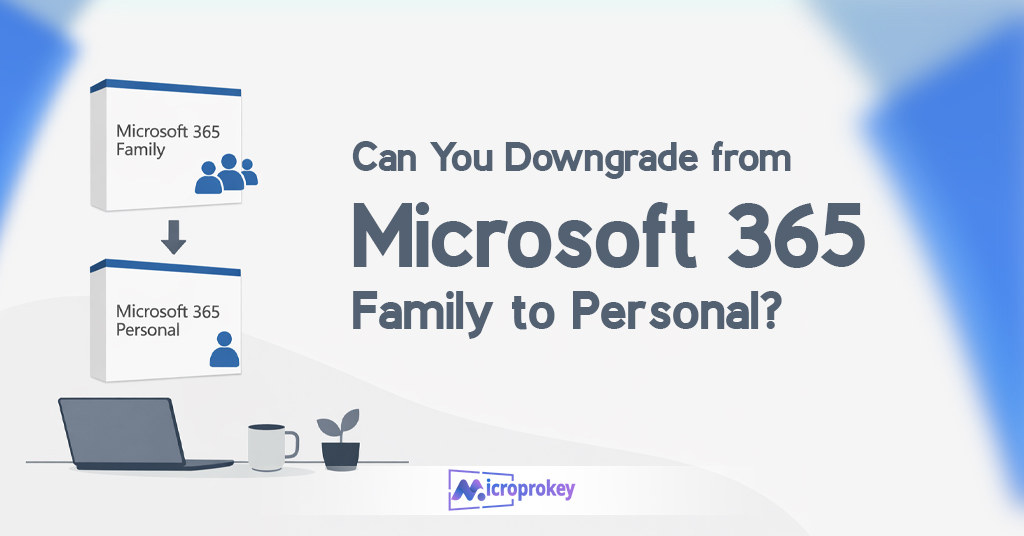
Check renewal dates. You can cancel auto-renew or update payment methods. If you wish to upgrade or share with others, consider switching to Microsoft 365 Family.
You can also see the number of times Office has been installed. Using Microsoft 365 Personal allows one active user. So managing this page helps avoid errors.
You can contact support from this dashboard. Issues resolve fast. Subscription management includes email storage, device limits, and license settings. Stay informed. Using Microsoft 365 Personal is simple, but ongoing attention helps.
Update your profile for better security. Link it with other tools like Skype credit or Microsoft Rewards. Using your dashboard makes everything easier. Keep your subscription active and safe.
Troubleshooting Common Issues When Switching Devices
Sometimes switching devices brings problems. Using Microsoft 365 Personal should be smooth. But errors can happen. A common issue is license conflict. This means your license is still active on another machine.
To fix it, go to your Microsoft account. Deactivate other devices. Then retry login. Another issue is file syncing. If OneDrive doesn’t update, restart the app. Or sign out and back in.
Recheck Internet connection. For Office activation errors, re-install the software. Sometimes it fixes deeper issues. Use Microsoft’s built-in “Support Tool.” It runs checks and fixes common bugs.
Another problem is profile mismatch. Always log in using the exact email used for the subscription. Using Microsoft 365 Personal works best when accounts sync correctly.
Some antivirus tools may also block files. Temporarily disable them to check. If nothing works, contact Microsoft Help. The support team replies quickly, often within the day.
The Advantages of Cloud Storage in Microsoft 365
Cloud storage is key. Using Microsoft 365 Personal gives users 1TB free on OneDrive. That’s a lot of space. Store Word documents, Excel files, photos, and even videos.
Access them from anywhere. All you need is Internet. Even if you lose a device, your files are safe. Just sign in on another device. OneDrive fetches everything for you.
File sharing uses secure links. Save space. Share big files with one click. No email attachments needed. It supports backups too. You can keep older versions of files—great if you need to revert.
With device switching, cloud storage helps a lot. There’s no need to copy files across devices. Using Microsoft 365 Personal guarantees peace. You won’t panic over missing files.
Using the cloud today means smarter living. Save automatically. Sync instantly. That’s the promise Microsoft makes with this personal plan.
Advertisement: Get Licensed with MicroProKey
Ready to use Microsoft 365 Personal fully licensed? Visit MicroProKey now. They offer 100% genuine license keys. At the lowest price. You get fast email delivery.
MicroProKey is trusted by users worldwide. Buying from them means no hassle. Instant activation. Lifetime access. Official support. They also sell Windows 11, Office 2021, and more.
Using Microsoft 365 Personal is better with a trusted license vendor. Avoid scams. Save your time. Save money. Choose MicroProKey for peace and proof.
Their support team is ready 24/7. Don’t wait. Make your switch worry-free. Unlock Microsoft 365 Personal from a safe source.
Conclusion: Simplify Your Digital Life Today
Switching devices can seem big. But with the right plan, it’s easy. Using Microsoft 365 Personal makes this process smooth. Back up your data. Deactivate the old device. Sign in on the new one. Sync and restore settings. That’s it!
You don’t need tech skills. Every step uses simple tools. With OneDrive and your Microsoft account, your work follows you. Whether you upgrade laptops or switch from Mac to Windows, your Office follows.
Using Microsoft 365 Personal puts the power in your hands. It’s more than software. It’s your digital life organized. From Word essays to Excel sheets, your work is never lost. One simple sign-in opens your digital office.
We hope this guide makes switching easier. And remember, if you need a valid license, check MicroProKey. You’ll be safe, fast, and back to work or school in no time.
Stay productive. Stay connected. And keep using Microsoft 365 Personal—anytime, anywhere.