






It was early Monday morning when Alex, a young IT consultant, sat in front of his new laptop. He had just purchased a high-end device, ready to transform his workflow. But as the screen lit up with Windows 11, he froze. The sleek design impressed him, yet he knew a proper setup was the key to productivity. Without guidance, small mistakes could cost hours of work later. So, he searched for a reliable Windows 11 Setup Guide. He wanted a clear, professional, and practical roadmap.
That is why this ultimate article exists. This guide is designed for professionals like Alex, who need performance, security, and efficiency. It explains every step in plain words, so you avoid confusion. You will learn how to install, configure, optimize, and secure your system. Each section builds your skills with simple steps. This Windows 11 Setup Guide goes beyond basics. It shows tips that only seasoned professionals use. If you follow it carefully, you will master Windows 11 with confidence. Now, let’s begin this detailed journey into setting up Windows 11 the professional way.
Preparing for the Windows 11 Installation
Before you install Windows 11, preparation is crucial. Always start by checking system requirements. Microsoft lists them on the official page. Make sure your processor, RAM, and storage meet the standard. Use the PC Health Check tool to confirm compatibility. Next, back up all your data. Save files on an external drive or cloud storage. This step protects against accidental loss during setup. Gather your license key, either from Microsoft or a trusted reseller.
A verified Windows 11 Setup Guide always recommends legal sources. Check your network stability, as updates will be required. Charge your laptop to avoid shutdowns in the middle of setup. Create a bootable USB drive using official tools. Format the drive and add the Windows 11 ISO. Professionals often prepare two USB drives as a backup. Remove unnecessary external devices before setup. This helps avoid driver conflicts. Organize your workspace and ensure you have time. Installing Windows is not hard, but it requires patience. With preparation, you minimize risks. Now, you are ready for the installation process.
Installing Windows 11 Step by Step
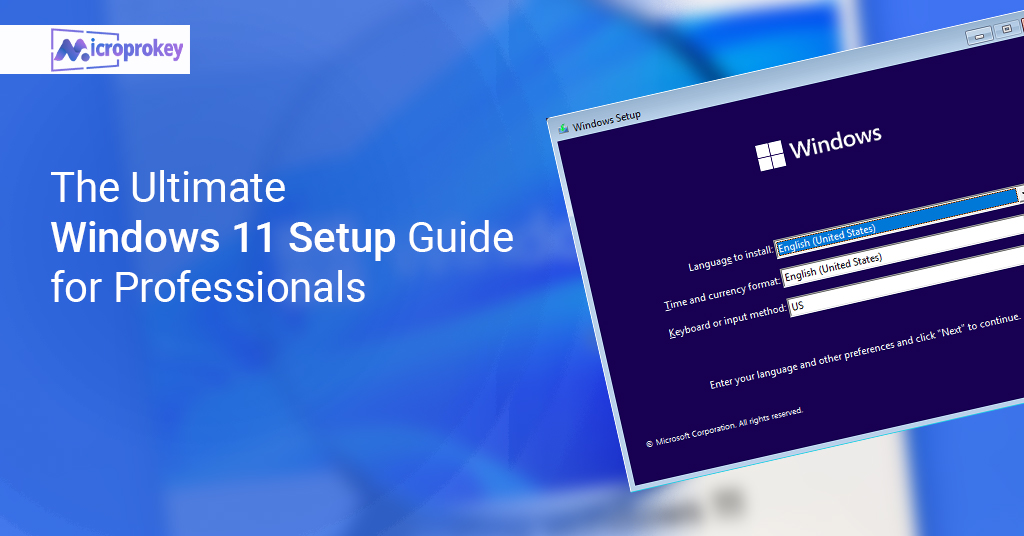
Begin the installation by plugging in your bootable USB. Restart your device and access the BIOS. Select USB as the primary boot option. Once the installer loads, choose your language and region. Enter the license key when prompted. Select custom installation for a fresh start. Delete old partitions if you want a clean setup. Then, create new partitions based on your preference.
Installation will take several minutes. Your device will restart several times. Stay patient and avoid interruptions. After setup, configure your account. You can use a Microsoft account or a local one. Many professionals prefer Microsoft accounts for better syncing. Set your password and security options.
Choose privacy settings carefully. Disable unnecessary tracking features if you prefer more control. Allow updates to install automatically. Once the process completes, you will see the new Windows 11 interface. The sleek design and centered Start menu will greet you. This phase completes the basic installation. However, real optimization begins after this step. The next outlines will show you how to fine-tune your Windows 11 Setup Guide for professional needs.
Customizing Windows 11 Appearance
Your work environment matters. A clean and personalized desktop enhances productivity. Right-click on the desktop and select “Personalize.” Choose a theme that matches your style. Use dark mode for less eye strain during long work sessions. Change the background with a professional wallpaper.
You can add live wallpapers with third-party tools. Pin your most used apps to the taskbar. Arrange icons logically for easy access. Customize the Start menu layout. Group apps into folders to reduce clutter. Adjust system sounds to something minimal. Turn off notifications you do not need. Professionals prefer a distraction-free interface. Resize taskbar icons for better visibility.
Use widgets to monitor tasks, weather, or finance. Customization in Windows 11 is flexible and modern. With these tweaks, you make your desktop both aesthetic and functional. This section of the Windows 11 Setup Guide proves appearance affects performance. A professional desktop inspires focus. Now, let us move to system optimization.
Optimizing Performance for Professionals
Performance is vital for professionals. Start by updating drivers from the manufacturer’s site. Install the latest GPU and chipset drivers. Open “Settings” and head to “System.” Adjust power settings for performance mode.
Disable background apps that slow down your system. Use the task manager to identify resource hogs. Clean up temporary files regularly. The storage sense feature can automate this. Enable fast startup for quicker boot times. Limit startup apps to essential ones only. Defragment your hard drive if it is not SSD. Optimize virtual memory settings for smoother multitasking.
Windows 11 offers performance tweaks through “Game Mode.” Even for professionals, this can boost system speed. Keep your system updated with security patches. Regular updates prevent vulnerabilities and improve stability. This Windows 11 Setup Guide stresses proactive care. Professionals cannot afford slow devices. A well-optimized system saves time and energy. You are now ready for advanced customization.
Configuring Essential Productivity Tools
Windows 11 comes with built-in productivity features. Start with Microsoft Office integration. Install Word, Excel, and PowerPoint for daily work. Use OneNote for digital note-taking. Professionals benefit from Microsoft Teams integration. Windows 11 places Teams directly in the taskbar. Sync your Outlook for seamless email management. Enable cloud storage with OneDrive.
This allows access from any device. Use virtual desktops for project separation. Professionals manage tasks better with multiple desktops. Install Edge or your preferred browser. Add productivity extensions like grammar checkers. Pin calendar and task manager for quick access. Set up Focus Assist to block distractions. Use Snipping Tool for quick captures. Professionals need efficiency in every step. This Windows 11 Setup Guide ensures you use all tools effectively. Mastering these features boosts your daily performance. With productivity tools in place, it is time for security.
Securing Your Windows 11 System
Security is not optional for professionals. Start by enabling Windows Hello. Use facial recognition, fingerprint, or PIN for login. Turn on BitLocker to encrypt your drives. Keep firewall active at all times. Enable Windows Defender Antivirus. For extra safety, add a premium security suite.
Regularly update passwords and use a manager. Enable secure boot in BIOS. Avoid downloading apps from unknown sources. Use Microsoft Store for trusted software. Adjust privacy settings in “Settings > Privacy & Security.” Disable tracking features you do not need. Regularly back up using File History. Professionals should use both cloud and offline backups. Secure your network with WPA3 encryption. Do not use public Wi-Fi without a VPN. This Windows 11 Setup Guide highlights prevention. Security lapses cost time and trust. By setting up strong protection, you work with peace of mind. Now, let’s move to workflow automation.
Enhancing Workflow with Virtual Desktops
Virtual desktops are powerful for professionals. They allow separate spaces for projects. Press Windows + Tab to access Task View. Create new desktops for different tasks. Name them according to projects. Move apps between desktops easily. Professionals use one desktop for emails, another for coding, and another for meetings. This reduces clutter and boosts focus. Use keyboard shortcuts for faster navigation. Assign desktops for client projects separately. Windows 11 allows smooth switching between them. Customize backgrounds for each desktop. This helps identify them quickly. Virtual desktops improve multitasking without confusion. Professionals appreciate organized workspaces. A Windows 11 Setup Guide must include this feature. It enhances control and efficiency. With desktops sorted, you can explore advanced features.
Using Snap Layouts and Snap Groups
Windows 11 introduces Snap Layouts. This feature organizes multiple windows on your screen. Hover over the maximize button to see layouts. Choose the split you prefer. Snap Groups save your layout for later. Professionals benefit when handling research and writing together. For example, one side shows a browser, while the other has Word. Snap Groups allow quick restoration of workspaces. Use keyboard shortcuts for faster snapping. Adjust sizes to suit your workflow. Multi-monitor setups also support Snap Layouts. This Windows 11 Setup Guide ensures productivity hacks are included. Organizing apps saves precious time. Snap features reduce distraction and clutter. Professionals can work smarter with these tools. This section unlocks true multitasking potential. Next, let us explore software installation.
Installing and Managing Professional Software
After setup, software installation is critical. Start with Microsoft Office Suite. Then, install project management tools like Trello or Asana. For developers, add Visual Studio or VS Code. Designers should install Adobe Creative Cloud. Writers may prefer Grammarly and Scrivener.
Always download from official websites. Avoid pirated or unsafe sources. Use package managers like Winget for faster installs. Professionals appreciate automation of software updates. Keep software licenses in one secure location. Use password managers to store login credentials. Regularly uninstall unused apps. This saves space and reduces background load. A professional Windows 11 Setup Guide must stress safe software management. Professionals rely on tools daily. The smoother the software, the smoother the workflow. After apps, let’s move to cloud integration.
Integrating with Cloud Services
Cloud services are essential for modern professionals. Windows 11 integrates OneDrive by default. Sync your files across devices. Access data from anywhere securely. Use Microsoft 365 for seamless collaboration. Professionals often work remotely, so cloud tools help. Add Google Drive or Dropbox if you prefer variety. Integrate Slack for team communication. Sync calendars with Outlook or Google Calendar. Professionals manage tasks better with cloud apps. Automate backups through cloud storage. Share files with colleagues without sending heavy emails. Control access with permissions. Cloud services support real-time collaboration. This Windows 11 Setup Guide recognizes cloud power. Modern professionals cannot rely only on local storage. The cloud keeps work flexible and safe. With cloud integration, your setup is future-ready.
Networking and Remote Work Setup
Networking setup matters for professionals. Configure Wi-Fi with WPA3 encryption. Avoid weak passwords on your router. Use Ethernet for stable connections. Enable VPN for secure remote work. Windows 11 supports remote desktop access. Professionals can log into office systems from anywhere. Set firewall rules for trusted networks only. Share files through secure network settings. Disable public sharing when outside trusted environments. Use collaboration tools like Microsoft Teams or Zoom. This Windows 11 Setup Guide covers remote setup carefully. Remote work is part of modern jobs. Reliable networking ensures productivity without risks. Now, let’s talk about hardware support.
Hardware Integration and Device Setup
Windows 11 supports modern hardware well. Install proper drivers for printers, scanners, and webcams. Use Bluetooth for wireless accessories. Connect dual monitors for extended workspace. Professionals enjoy smoother workflows with multiple screens. Calibrate displays for color accuracy. Adjust sound settings for external speakers or headphones. Test microphone before meetings. Enable touch and pen input if your device supports it. Docking stations improve laptop setups. Professionals use ergonomic accessories for long hours. Keep device drivers updated regularly. Device Manager helps you troubleshoot issues. This Windows 11 Setup Guide ensures all hardware runs smoothly. Good hardware integration means fewer disruptions. Your system becomes reliable for professional work.
Advertising Microprokey for Genuine Licensing
When setting up Windows 11, a genuine license is vital. Professionals should never use cracked versions. They cause risks and security issues. Microprokey is a trusted source for genuine Microsoft keys. They provide affordable and authentic licenses. Buying from Microprokey ensures full updates and support. You avoid activation errors that slow down productivity. Professionals need legal solutions. This Windows 11 Setup Guide recommends Microprokey for its reliability. It offers instant delivery and customer support. With Microprokey, you start your journey safely. Invest in genuine licensing to protect your device. Professionals should never compromise on authenticity.
Maintenance and Long-Term Optimization
Setup does not end with installation. Professionals must maintain systems regularly. Run disk cleanup and storage sense often. Keep software updated to avoid bugs. Use antivirus scans weekly. Monitor system performance with built-in tools. Schedule backups monthly. Review startup apps quarterly. Replace outdated drivers quickly. Check battery health if on laptops. Calibrate displays for long projects. Maintain cooling by cleaning vents. Professionals extend lifespan with care. This Windows 11 Setup Guide stresses long-term focus. Small steps prevent big problems. A well-maintained system serves you for years.
FAQs
Q1: What is the Windows 11 Setup Guide?
It is a step-by-step manual that helps professionals install, configure, and optimize Windows 11.
Q2: Why should professionals follow a Windows 11 Setup Guide?
It saves time, boosts productivity, and ensures security during setup.
Q3: Can I use Windows 11 without a license?
Technically yes, but professionals should use genuine keys. Genuine licenses give updates and full support.
Q4: How does Windows 11 Setup Guide improve performance?
It provides optimization tips like disabling background apps and using Snap Layouts.
Q5: Is Microprokey safe for Windows 11 licenses?
Yes. Microprokey sells genuine Microsoft keys at affordable rates with customer support.
Conclusion
Windows 11 is powerful, modern, and professional. Yet, without the right setup, it loses impact. This Windows 11 Setup Guide ensures you install, secure, and optimize the system effectively. From preparation to cloud integration, every step was designed with professionals in mind. We explored performance tweaks, productivity tools, and security setups. We also highlighted genuine licensing with Microprokey.
These steps save time, boost focus, and enhance workflow. They help you stay secure and reliable in a fast digital world. Professionals need efficiency and trust in their devices. Windows 11 offers both when set up correctly.
If you follow this guide, you will not waste hours fixing issues later. Instead, you will enjoy a smooth, fast, and secure work environment. Invest the time now, and your Windows 11 will reward you daily. This guide is not just theory; it is practical action. Use it to master your professional system today.