






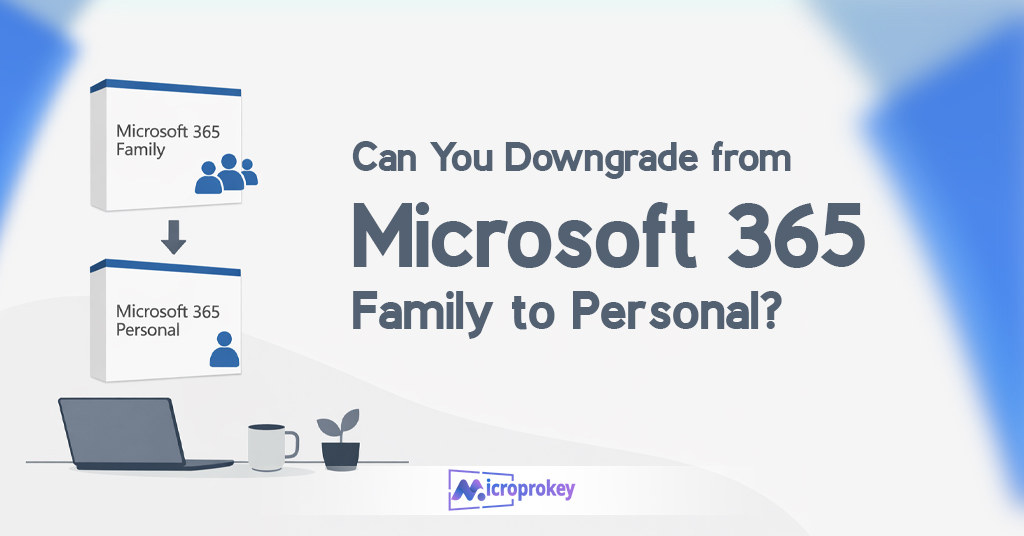
Sarah was a busy mom with three kids. She bought Microsoft 365 Family two years ago. Her whole family used it daily. They loved the shared storage. They enjoyed the multiple user accounts. But things changed last year. Her kids grew up and moved out. They got their own subscriptions. Now Sarah was paying for six user licenses. She only needed one account. She felt she was wasting money. She wondered about switching plans. Could she downgrade from Microsoft 365 Family to Personal? This question troubled her for weeks. She searched online for answers. She found confusing information everywhere. Some said it was easy. Others said it was complicated. Sarah needed clear guidance. She needed step-by-step instructions. Many people face the same situation. They buy Microsoft 365 Family for their households. Later their needs change. They no longer need multiple accounts. They want to save money. They want a simpler solution. This guide will help you. It will answer all your questions. You will learn how to downgrade. You will understand the process completely. Let us start this journey together.
Understanding Microsoft 365 Family Subscription
Microsoft 365 Family is a popular subscription plan. It serves households with multiple users. You can share it with six people. Each person gets their own account. Everyone enjoys full Microsoft apps. This includes Word, Excel, and PowerPoint. It also includes Outlook and OneNote. Each user gets 1TB of cloud storage. That means 6TB total for families. The subscription costs around $99.99 yearly. You can also pay monthly. The monthly cost is about $9.99. Microsoft 365 Family offers great value. Large families benefit the most. Students and professionals use it together. Parents can monitor children’s accounts. The family safety features help parents. They can set screen time limits. They can filter web content. Microsoft 365 Family includes premium features. You get advanced security tools. You receive ongoing updates automatically. New features arrive regularly. Microsoft supports the product constantly. The apps work on multiple devices. You can use them on computers. You can use them on tablets. You can use them on phones. Microsoft 365 Family is flexible. It works on Windows and Mac. It works on iOS and Android. Cloud sync keeps everything updated. Your files stay accessible everywhere. Collaboration becomes easy with sharing. Multiple people can edit documents together. Real-time changes appear instantly. Microsoft 365 Family suits busy households. It keeps everyone productive and connected.
What is Microsoft 365 Personal?
Microsoft 365 Personal is designed differently. It serves individual users only. One person uses this subscription. You cannot share it with others. The cost is lower accordingly. It costs about $69.99 per year. Monthly payment is around $6.99. You save money with Personal. But you get fewer user licenses. Microsoft 365 Personal includes all core apps. You still get Word and Excel. You still get PowerPoint and Outlook. OneNote is included as well. The app collection remains the same. Quality does not decrease at all. Storage space is 1TB total. One person uses all the storage. This is enough for most individuals. Cloud storage works identically. Your files sync across devices. You can access them anywhere. Microsoft 365 Personal has device limits. You can install on unlimited devices. But you can sign in on five simultaneously. This works for most single users. Updates come regularly with Personal. Microsoft treats all subscribers equally. Security features remain strong. You get the same protection level. Advanced threat detection is included. Personal suits independent professionals. Freelancers often choose this plan. Students living alone prefer it. Anyone working solo benefits from it. The subscription is more affordable. Single Microsoft 365 Family save about $30 yearly. This adds up over time. Microsoft 365 Personal delivers excellent value. It matches individual needs perfectly. You pay only for what you use.
Key Differences Between Family and Personal Plans
Understanding differences helps you decide better. Microsoft 365 Family allows six users. Microsoft 365 Personal allows one user. This is the main difference. Storage differs significantly too. Family provides 6TB total storage. Personal provides only 1TB storage. The price difference is notable. Family costs $99.99 per year. Personal costs $69.99 per year. You save $30 annually with Personal. Family includes family safety features. Personal does not have these. Parents monitoring kids need Family. Single adults prefer Personal instead. Both plans include identical apps. Word works the same way. Excel functions remain unchanged. PowerPoint features are equal. Outlook provides similar email service. OneDrive storage works identically. The cloud experience stays consistent. Device installation is similar. Both allow unlimited device installations. Sign-in limits are identical too. Five simultaneous sign-ins are allowed. Update frequency remains the same. Microsoft updates both equally. Security features match completely. Neither plan is less secure. Customer support is equal too. Microsoft helps all subscribers fairly. The choice depends on users. Count how many people need access. Calculate the cost per person. Family becomes cheaper with more users. Personal wins for single users. Consider your actual needs carefully. Do not pay for unused licenses. Make the smart financial decision. Both plans deliver Microsoft 365 Family. Choose based on your situation.
Reasons to Downgrade from Microsoft 365 Family
People downgrade for various reasons. Cost savings motivate many users. Paying $30 less matters to some. Every dollar counts for budgets. Family situations change over time. Kids move out of homes. They start their own subscriptions. Parents no longer need Family. Divorce affects subscription needs too. One household becomes two separate ones. Each person needs individual plans. Roommates sometimes share subscriptions. Later they move to different places. They cannot share anymore then. Career changes affect needs also. Some people stop working remotely. They no longer need home Office. Their employers provide work licenses. Personal becomes sufficient for personal use. Students graduate and change status. They got Family through schools. Now they need personal subscriptions. Simplicity attracts some users too. Managing one account is easier. No sharing complications exist anymore. Storage needs decrease sometimes. People delete old files regularly. They realize 1TB is enough. Premium features might go unused. Some people never use family safety. They do not need parental controls. Why pay for unused features? Financial hardship forces decisions too. Cutting expenses becomes necessary sometimes. Subscriptions get Microsoft 365 Familyfor savings. Microsoft 365 Family costs more. Switching to Personal reduces expenses. Life circumstances change constantly. Your subscription should match your needs. Review your usage regularly. Downgrading makes sense for many people. Consider your specific situation carefully. Make the choice that fits you Microsoft 365 Family.
Step-by-Step Guide to Downgrade Your Subscription
Downgrading requires careful steps. Follow this guide precisely. First, log into your Microsoft account. Go to account.microsoft.com directly. Enter your email and password. Verify your identity if prompted. Second, navigate to Services section. Click on “Services & subscriptions.” Find your Microsoft 365 Family subscription. Click on “Manage” next to it. Third, review your current subscription details. Note your renewal date carefully. Check how much time remains. This information matters for timing. Fourth, click on “Cancel subscription.” Microsoft will try retaining you. They might offer discounts. Consider these offers carefully. Sometimes staying makes financial sense. Fifth, confirm your cancellation decision. Read the terms they present. Understand what happens next. Your subscription continues until expiration. You do not lose access immediately. Sixth, wait for your subscription to expire. Use all your remaining time. Access continues until the end date. Download important files beforehand. Save everything you need locally. Seventh, purchase Microsoft 365 Personal subscription. Wait until Family fully expires. Then buy your new Personal plan. Do this through official Microsoft store. Alternatively, use authorized resellers like Microprokey. Eighth, set up your Personal subscription. Sign in with the same account. Enter your new product key. Activation happens automatically usually. Ninth, verify everything works correctly. Open your Microsoft apps. Check your OneDrive storage access. Confirm all features function properly. Tenth, inform Microsoft 365 Family members. Tell them the subscription ended. They need their own plans now. Help them transition if needed. Following these steps ensures success. The process is straightforward actually. Take your time with each step.
Timing Your Downgrade Properly
Timing affects your downgrade experience. Poor timing costs you money. Good timing saves you money. Check your renewal date first. Find this in your account. Look under Services & subscriptions. Note when automatic renewal occurs. Cancel before renewal happens. This prevents unwanted charges. You keep access until expiration. Your subscription continues normally. Cancel at least days before renewal. This gives buffer time. Avoid last-minute cancellations always. Technical issues could cause problems. Early cancellation is safer. Your remaining time is not lost. You paid for that time already. Use every day you purchased. Wait until the end to buy Personal. This maximizes your Family subscription value. Overlapping subscriptions waste money. You pay for two plans unnecessarily. Some people make this mistake. They buy Personal too early. They pay for both simultaneously. This doubles your costs temporarily. The smart approach saves money. Cancel auto-renewal immediately when decided. Continue using Family until expiration. Purchase Personal only after expiration. Activate Personal immediately then. This creates no gap or overlap. Consider promotional periods too. Microsoft offers discounts sometimes. Black Friday deals appear annually. Back-to-school sales happen too. Waiting for deals saves money. Microprokey offers competitive pricing always. They have regular promotions available. Check their prices before purchasing. Seasonal timing matters for savings. Plan your transition strategically. A little patience saves money. Your timing decision affects your wallet.
Get the Best Deals at Microprokey
Finding affordable Microsoft subscriptions matters. Microprokey offers excellent solutions. They sell genuine Microsoft products. Their prices are very competitive. You save money shopping there. Microprokey is a trusted reseller. They have years of experience. Customer reviews are overwhelmingly positive. Many satisfied customers recommend them. The purchasing process is simple. Visit their website directly. Browse their product catalog easily. Find Microsoft 365 options quickly. Both Family and Personal are available. Select the plan you need. Add it to your cart. Checkout takes just minutes. Payment options are flexible. They accept major credit cards. PayPal is accepted too. Delivery happens instantly usually. You receive product keys immediately. No waiting for physical delivery. Activation is straightforward completely. Use the key on Microsoft’s site. Your subscription activates instantly. Microprokey provides customer support. They help with any issues. Response times are quick. Problems get resolved efficiently. Their prices beat many competitors. Compare before purchasing anywhere. Microprokey often has lowest prices. Discounts appear regularly on their site. Subscribe to their newsletter. Get notified about special offers. Seasonal sales bring extra savings. They guarantee genuine products always. No fake or stolen keys. Microsoft accepts all their keys. Legitimate purchases protect you. Avoid sketchy unauthorized sellers. Microprokey is safe and reliable. Consider them for your downgrade purchase. Buy your Microsoft 365 Personal there. Save money while getting quality. Visit Microprokey for great deals today!
Common Mistakes to Avoid When Downgrading
Mistakes can complicate your downgrade. Avoiding them saves you trouble. First mistake is canceling too late. Missing the renewal deadline costs money. Set reminders to cancel on time. Second mistake is not backing up data. Shared files might become inaccessible. Download everything important beforehand. Third mistake is buying Personal too early. Overlapping subscriptions waste money. Wait for Family to expire first. Fourth mistake is forgetting about family members. They lose access when you downgrade. Warn them in advance kindly. Help them transition to their own subscriptions. Fifth mistake is ignoring promotional offers. Microsoft sometimes offers retention discounts. Consider these before final cancellation. Switching might not be necessary. Sixth mistake is using unauthorized sellers. Cheap keys might be stolen. They get deactivated by Microsoft. Only buy from trusted sources like Microprokey. Seventh mistake is forgetting password recovery. Ensure you can access your account. Update recovery information if needed. Lost access creates major problems. Eighth mistake is not checking storage usage. If you exceed 1TB with Personal, problems arise. Delete unnecessary files before downgrading. Organize your storage in advance. Ninth mistake is skipping the verification step. After purchasing Personal, verify activation. Ensure everything works correctly immediately. Catching problems early helps resolution. Tenth mistake is rushing the process. Take your time with each step. Read all prompts carefully. Understand what you are agreeing to. Rushing leads to errors often. Patience prevents most mistakes completely. Learn from others’ experiences wisely. Avoid these common pitfalls entirely. Your downgrade will proceed smoothly then.
Alternatives to Downgrading
Downgrading is not always best. Consider alternatives before deciding. First alternative is finding new users. Invite other family members. Extended family can join your plan. Friends can share costs with you. Split the $99.99 cost equally. Each person pays about $16.67 yearly. This is cheaper than Personal. Second alternative is keeping Family for storage. 6TB versus 1TB is significant. Heavy cloud users need more space. Photographers store many large files. Video creators need extensive storage. Keep Family for storage benefits. Third alternative is switching to free alternatives. Google Workspace offers free options. Google Docs works well for basics. Google Drive provides 15GB free. This suits light users adequately. Fourth alternative is using web-only versions. Microsoft offers free online apps. Word, Excel, and PowerPoint work online. Features are limited but functional. Basic needs get met this way. Fifth alternative is waiting for promotions. Microsoft 365 Family goes on sale often. Significant discounts appear regularly. The discounted price might match Personal. You keep all Family benefits then. Sixth alternative is employer-provided subscriptions. Many companies provide Microsoft 365 access. Check with your employer first. You might already have free access. Seventh alternative is student discounts. Students get special pricing often. Check your eligibility for discounts. Educational institutions offer deals too. Eighth alternative is annual payment. Paying annually saves money overall. Monthly payments cost more total. Switch to annual to reduce costs. Consider all options thoroughly. The best choice depends on circumstances. Sometimes downgrading is indeed best. Other times alternatives make more sense. Evaluate your specific situation carefully.
How to Help Family Members Transition
Family members need support during transitions. Your decision affects them too. Communication is essential here. Tell them about your decision early. Give them time to prepare. Explain why you are downgrading. Help them understand the situation. Each family member needs options. They can purchase their own subscriptions. Microsoft 365 Personal suits individuals. Microsoft 365 Family suits their own households. They might form new sharing groups. Siblings could share a new Family subscription. This reduces everyone’s costs effectively. Help them understand subscription options. Explain the differences between plans. Guide them to the best choice. Assist with the technical transition. Help them download their files. Show them how to organize data. Walk them through the process. Recommend trusted sellers for purchases. Direct them to Microprokey for deals. They can save money there too. Address their concerns patiently. Some might feel frustrated initially. Acknowledge their feelings respectfully. Transitions can feel uncomfortable temporarily. Remind them of the benefits. Individual subscriptions give them independence. They control their own accounts now. No more shared storage limitations exist. Their data becomes completely private. Some family members might resist change. Be patient with reluctant ones. Give them extra time and support. Offer to help with their setup. Making the transition easier builds goodwill. Relationships matter more than subscriptions. Handle the situation gracefully always. Everyone adjusts eventually with support. Your family remains strong through changes. Technology should not divide families. Help everyone adapt smoothly together.
Technical Considerations When Downgrading
Technical aspects require attention too. Understanding them prevents problems. First, consider your device installations. Microsoft 365 Family allows many installations. Personal has the same unlimited installations. Five simultaneous sign-ins are allowed. Your devices continue working normally. Reinstallation might be necessary sometimes. Usually, existing installations remain active. Sign out and sign in again. This refreshes your subscription status. Second, consider app functionality changes. All core apps remain functional. Word, Excel, PowerPoint work identically. Outlook continues managing your email. OneNote keeps your notes accessible. No features disappear with Personal. Third, consider storage synchronization. Your OneDrive keeps syncing files. Files within 1TB remain accessible. Files exceeding 1TB become problematic. OneDrive stops syncing excess files. Delete files to stay within limits. Fourth, consider mobile app access. iOS and Android apps continue working. Sign in with your same account. Premium features remain with Personal subscription. Mobile productivity stays uninterrupted completely. Fifth, consider browser access implications. Office Online works with any subscription. Even free accounts access web apps. Premium subscriptions enhance the experience. Personal provides full premium access. Sixth, consider integration with other services. Microsoft Teams continues working normally. Skype integration remains functional too. Other Microsoft services stay connected. Your Microsoft ecosystem stays intact. Seventh, consider automatic updates. Updates continue arriving automatically. Microsoft updates all subscription types equally. You always have the latest versions. Security patches install automatically too. Technical transitions are usually seamless. Microsoft designs smooth user experiences. Problems are rare but possible. Contact Microsoft support if needed. They resolve technical issues quickly.
Managing Your Microsoft Account After Downgrading
Account management remains important always. After downgrading, stay organized. Your Microsoft account stays the same. You do not need a new account. Everything transfers to your Personal subscription. Billing information might need Microsoft 365 Family Review your payment methods regularly. Update expired credit cards promptly. This prevents subscription interruption issues. Monitor your subscription status periodically. Check Services & subscriptions occasionally. Verify your Personal subscription is active. Confirm the renewal date is correct. Security settings deserve regular review. Update your password periodically. Enable two-factor authentication strongly. This protects your account effectively. Hackers target Microsoft accounts often. Strong security prevents unauthorized access. Recovery options need verification too. Ensure your recovery email works. Update your recovery phone number. These help if you forget passwords. Storage usage requires monitoring. Check your OneDrive usage regularly. Stay within your 1TB limit. Delete unnecessary files periodically. Large files consume space quickly. Videos and photos use significant storage. Subscription renewal settings matter too. Decide between automatic and manual renewal. Automatic renewal ensures continuity. Manual renewal gives you control. Either option works well actually. Choose based on your preference. Budget planning helps subscription management. Include Microsoft 365 in your budget. Annual payments offer slight savings. Plan for yearly subscription expenses. Account management is ongoing responsibility. Spend a few minutes monthly reviewing. This prevents surprises and problems. Good Microsoft 365 Family Microsoft 365 Family smooth subscription experience. Your Microsoft 365 Personal will serve you well.
Future Considerations for Microsoft 365 Users
The future brings changes constantly. Microsoft updates their offerings regularly. Stay informed about new developments. Microsoft 365 Family might get cheaper. Promotional pricing could make it attractive. Reconsider your subscription choice annually. Your life circumstances change too. New family members might join you. Upgrading back to Family could make sense. Marriage creates new shared households. Children grow and need accounts. Life events affect subscription needs. Technology evolves continuously also. Microsoft adds new features regularly. New apps join the subscription sometimes. Value increases without Microsoft 365 Family. Cloud storage might expand eventually. Microsoft competes with Google and others. Competition benefits consumers ultimately. Alternative products might emerge. Google Workspace improves constantly. Apple offers competing productivity solutions. Evaluate alternatives periodically. The best choice today might change later. Flexibility serves you well. Avoid long-term commitments if uncertain. Annual subscriptions provide flexibility. Monthly options cost more but offer escape. Business needs might change too. Your employer might provide Microsoft 365. Free work subscriptions save personal money. Career transitions affect technology needs. Remote work requires personal productivity tools. Office jobs provide company subscriptions. Planning ahead prevents surprises. Budget for subscription costs annually. Anticipate potential needs changes. Review your situation every year. Make adjustments as needed proactively. Your Microsoft 365 journey continues evolving. Adapt to changes smoothly always. Stay informed and make smart decisions. The future offers many possibilities.
Conclusion
Downgrading from Microsoft 365 Family to Personal is completely possible. The process is straightforward when done correctly. Many people successfully make this transition yearly. Understanding the differences between plans helps. Microsoft 365 Family serves households with multiple users. Microsoft 365 Personal suits individual users perfectly. The $30 annual savings matters for many budgets. Timing your downgrade properly maximizes value. Cancel auto-renewal before it charges you. Use all remaining time on your Family subscription. Purchase Personal only after Family expires completely. This avoids overlapping subscriptions and wasted money. Protecting your data during transition is essential. Download all important files beforehand. Help family members transition to their own subscriptions. Consider shopping at Microprokey for the best deals. They offer genuine Microsoft products at competitive prices. Avoid common mistakes that complicate the process. Technical transitions are usually seamless with Microsoft. Managing your account properly ensures smooth ongoing experience. The future might bring changes requiring plan adjustments. Stay flexible and review your needs annually. Microsoft 365 Family remains excellent for large households. Microsoft 365 Personal serves single users perfectly. Choose the plan that matches your current situation. Your productivity tools should Microsoft 365 Family actual needs. Make the smart financial decision for your Microsoft 365 Family today.
FAQ’s
Q1: Can I get a refund if I downgrade from Microsoft 365 Family to Personal?
A: Microsoft offers refunds within 30 days of purchase. After this period, refunds are generally not available. You can cancel auto-renewal and use remaining time instead. Contact Microsoft support for specific Microsoft 365 Family. They evaluate requests on a case-by-case basis.
Q2: Will I lose my files when switching from Microsoft 365 Family to Personal?
A: Your personal files in OneDrive remain safe. Files within 1TB storage limit stay accessible. Files exceeding this limit become inaccessible temporarily. Download important shared files before transitioning. Each family member keeps their own account files.
Q3: Can I upgrade back to Microsoft 365 Family after downgrading to Personal?
A: Yes, upgrading back to Family is always possible. You can purchase Microsoft 365 Family anytime. Your account accommodates subscription changes easily. Microsoft allows switching between plans freely. Visit Microsoft’s Microsoft 365 Family or trusted resellers like Microprokey.
Q4: How long does Microsoft 365 Family continue working after cancellation?
A: Your subscription continues until the current billing period ends. If you paid annually, access continues until that year ends. You do not lose access immediately after canceling. Microsoft honors the time you already paid for.
Q5: Can family members keep using their Microsoft accounts after I downgrade?
A: Yes, their Microsoft accounts remain active permanently. They lose access to premium Microsoft 365 features. Free features like 5GB OneDrive storage continue. They can purchase their own subscriptions anytime. Their saved files remain in their accounts.