





Imagine this. You are working hard on a school project. You search many websites. You copy text, URLs, and images. Later, you need something you copied earlier. But it’s gone. You only see the last thing copied. This is common for many users. It can be frustrating. That’s where Windows 10 Clipboard History helps.
Tom is a student who faced this daily. Every time he needed a quote or source, it vanished from his clipboard. He had to start over again. One day, Tom found out about Windows 10 Clipboard History. From that day, his work changed. He could see all copied items, even from yesterday. He saved time and effort.
This guide will show you how to enable and use Windows 10 Clipboard History. You’ll learn detailed steps, useful tips, and bonus tools. If you want to boost your work speed and avoid frustration, this article is your total solution.
Let’s dive into the world of easier copying and pasting!
What Is Windows 10 Clipboard History?
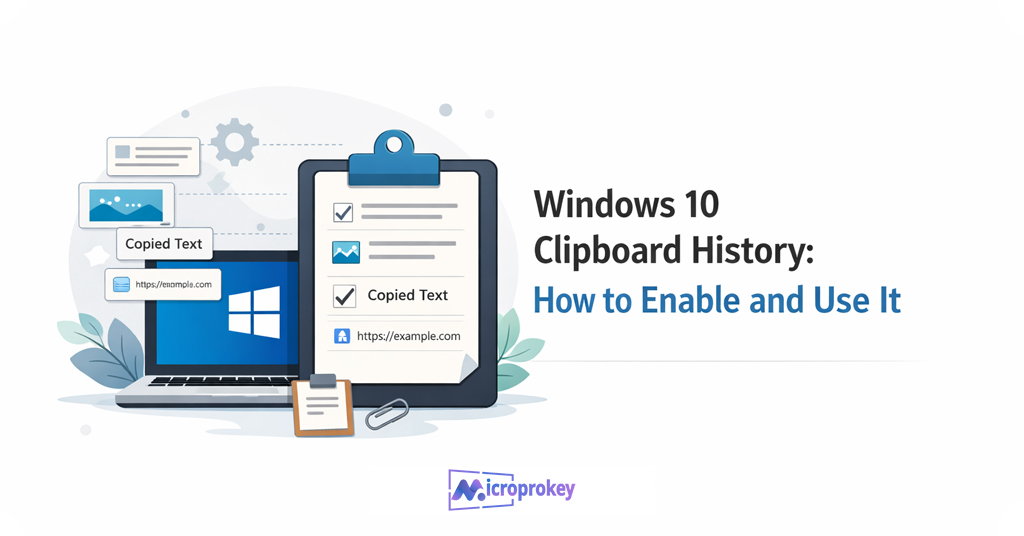
Windows 10 Clipboard History is a smart feature. It stores your copied items. It saves text, images, and links. It works in the background. You don’t even notice it.
This feature acts like a diary for your copy-paste activity. Every time you copy, it stores it in the clipboard. You can open it anytime. You can scroll through last copied items. You can choose what to paste again.
Before Windows 10 Clipboard History, users often lost important data. They relied on only one clipboard. Once you copied again, the old item disappeared. But now, you can go back to previous items with ease.
Clipboard History started with Windows 10’s October 2018 update. It is free and built-in. Many users don’t use it yet. Maybe they don’t know it exists. That’s why this guide is very helpful.
In the next steps, we will help you set it up. With just a few clicks, it will save you hours of work and stress. Let’s learn how to make this smart tool work for you.
Why You Should Use Clipboard History
Windows 10 Clipboard History is a real-time-saver. It helps in every copy-paste task. You don’t have to search again for lost content. You just pick it from the history list.
It keeps multiple items. So, you no longer lose copied text or images. It can store up to 25 entries. You can pin important items. That helps when you have to reuse content often.
Writers can keep quotes and sources. Students can keep answers or links. Office users can store business data. All of this becomes easier with Clipboard History.
Even if your PC restarts, pinned items stay. You don’t lose them. That’s a big win. You can also use Clipboard History to copy across devices, if signed into Microsoft account.
Clipboard History gives you control. You are no longer stuck with a single copied item. You can switch between copies. You can clear the list too. It is helpful, secure, and easy to use.
Use this tool to save time, reduce frustration, and work smarter. Don’t let good content disappear. Make full use of Windows 10 Clipboard History.
System Requirements to Use Clipboard History
Before using Windows 10 Clipboard History, check your system. Older versions do not support it.
To check your version, press Windows + R. Type winver and hit Enter. A box will show your version details. If it says version 1809 or above, you’re good to go.
Guest accounts may not allow full access. If you want to sync across devices, you need Microsoft Account login as well.
For syncing and storing, you need full admin rights. Some work systems may block clipboard access. Check your device policy if Clipboard History does not work.
No heavy software is required. No extra download is needed. Windows 10 Clipboard History is built-in. It uses very little memory. So, it will not slow your PC.
You also need a working keyboard, especially keys like Windows + V and Ctrl + C. A non-working keyboard can stop it from working properly.
Once your system meets these needs, you can turn on Clipboard History easily.
How to Enable Windows 10 Clipboard History
Here’s how to enable Windows 10 Clipboard History in simple steps:
- Click the Start menu or press the Windows key.
- Go to Settings (small gear icon).
- Click System.
- Scroll down and click Clipboard.
- Look for Clipboard History.
- Turn the switch On.
Now Clipboard History is ready.
You can also open it directly:
- Press Windows key + V.
- If it’s turned off, a prompt will show.
- Click Turn On.
You can now access history anytime. Just keep copying items. Press Windows + V to see them. Choose one to paste.
You don’t have to do this every time. Once turned on, it stays active. It remembers up to 25 items. It clears automatically each time you restart, unless pinned.
Turning it on takes almost a minute. But it gives long-lasting benefit. Use this tool daily. It can solve many productivity issues quickly.
Quick Keyboard Shortcuts for Clipboard History
Keyboard shortcuts are great for saving time. Windows 10 Clipboard History works well with them. Here are must-know shortcuts:
- Ctrl + C: Copy item
- Ctrl + X: Cut item
- Ctrl + V: Paste recent item
- Windows + V: Open Clipboard History panel
When you press Windows + V, a floating box appears. It shows your copied items. Click to paste it.
Using shortcuts is quicker than searching menus. Shortcut keys help you move fast. Especially when writing, coding, or researching.
If you remember only one, remember Windows + V. It unlocks everything. Keep that in mind. You’ll feel like a pro after a few tries.
How to View and Use Clipboard History
To view your clipboard history, press Windows + V. A small box will open. You’ll see copied text, images, or links from before.
Click on any item to paste it. You can paste into Word, Notepad, browsers, or chat windows. It works across apps. History supports plain text and small pictures.
If you copy again, the new item comes on top. The list shows latest items first.
This method helps when you need something from 10 minutes ago. Instead of copying again, just open Clipboard History.
Many don’t know that your clipboard can do this. With one key, your work gets faster. It’s quick and easy—and best of all, it’s free on Windows 10.
How to Pin Items to Keep Them
Some items are copied often. Like email addresses or templates. You can keep these by pinning them in Clipboard History.
Here’s how:
- Press Windows + V.
- Find the item you want.
- Click the three dots (•••) next to it.
- Choose Pin.
Pinned items stay even after restart. Others get removed during reboot. You can pin many items. This saves time each day.
Need quick access to canned replies? Pin them. Need that key login again and again? Pin it. Easy. Smart. Fast.
Pinned items also support right-click menu. You can delete or unpin later. Pinning turns Windows 10 Clipboard History into a powerful tool.
How to Clear Clipboard History
Want to clear history? It’s simple:
- Go to Settings.
- Choose System.
- Click Clipboard.
- Under Clear Clipboard Data, click Clear.
Or use this shortcut way:
- Press Windows + V.
- Click ••• on any item.
- Select Delete or Clear All.
Clearing history helps with privacy. Especially when sharing your PC. You can also delete one item at a time. Or full list at once.
Just know: pinned items stay even when others are cleared. You need to unpin first if you want them gone.
Common Problems and Easy Fixes
Sometimes Windows 10 Clipboard History may not work. Here are some reasons:
- Your version of Windows is too old.
- History option is turned off.
- You’re using a Guest account.
- Shortcut keys are locked.
Fixes:
- Update Windows to latest version.
- Check Clipboard settings and enable it.
- Log in with a Microsoft account.
- Check your keyboard function keys and shortcuts.
Also, system admin might block clipboard use. Check with IT if using a work PC. Restarting your device can help too.
Windows 10 Clipboard History usually works without errors. But with these fixes, you can solve most issues fast.
Best Use Cases for Students, Writers, and Workers
Students can copy answers, sources, and research data. No fear of losing text. Add links, images, or notes easily.
Writers can store quotes, templates, headlines, or ideas. Editing becomes faster. No need to Google things twice.
Office Workers can save email draft lines or data entries. Use it during meetings for fast response.
Clipboard History fits into all daily tasks. It saves time. It cuts repetition. It makes your day smoother. A smart worker uses smart tools—like Windows 10 Clipboard History.
Extra Tools That Work with Clipboard History
Want more features? Use these tools:
- ClipboardFusion
- Ditto
- ClipClip
- ClipMate
- CopyQ
They offer advanced search, tagging, cloud sync, and more. Many are free. Some offer paid plans with bonus features.
These tools work along with Windows 10 Clipboard History. They give you memory and power together. Try different ones and pick your favorite.
How Microprokey Makes Clipboard Management Easier
Microprokey is a small but powerful tool. It goes beyond Windows 10 Clipboard History. It gives keyboard shortcuts for text, emojis, and clipboard storage.
You can create clipboard shortcuts. Like pressing CTRL + Shift + 1 to paste email. Or F1 to enter address. No more typing long things.
Microprokey is light and easy to install. No learning curve. It works well with Clipboard History. Their combo can double your productivity.
Visit Microprokey.com for downloads, tips, and support. Try it for free. You’ll enjoy the extra control it gives.
Bonus Tips to Use Clipboard History Effectively
- Create shortcut keys with Microprokey for top-used items.
- Pin work-related items for daily use.
- Clear history weekly for privacy.
- Use it during Zoom or Teams meetings for quick replies.
- Always press Windows + V before recopying items.
- Save reference links during browsing.
- Use it together with note apps for higher efficiency.
Final Thoughts and Conclusion
Windows 10 Clipboard History is a hidden gem. Many people ignore its power. But once you try it, you won’t go back. It saves time and effort every day.
Use it for writing, studying, coding, and daily work. Enable it in a few clicks. Learn the shortcut—Windows + V. Save what matters. Find what you lost.
It’s fast, free, and built-in to Windows 10. Add tools like Microprokey, and you have a powerful combo. Keep your tasks smooth and your workflow fast.
Don’t rely on just one clipboard slot. You deserve better. Start using Windows 10 Clipboard History today. Make your digital life smarter and easier.
Now, it’s your turn. Go turn it on. Try it out. And enjoy a smarter way to copy and paste.